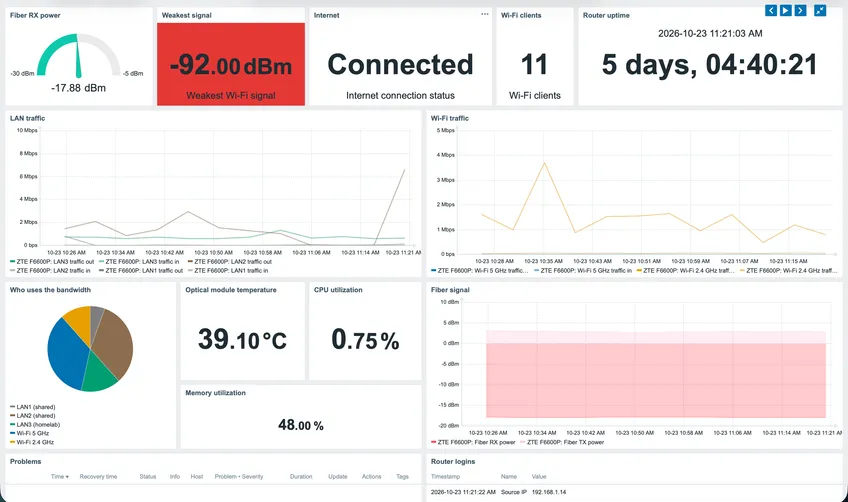
I deployed Zabbix 7.0 LTS (7.0.31) in the homelab this week. It went fine, which is the problem: install, add hosts, attach templates, done. Nothing to write about.
Then I tried to add the router.
The router is a ZTE ZXHN F6600P, Maroc Telecom’s GPON fiber box, which I bought. It’s both my ONT and my Wi-Fi router. It also turned out to be the only interesting part of the whole setup, because it doesn’t support SNMP.
No SNMP
The normal way to monitor a network device is SNMP: the device exposes counters, the monitoring server polls them. On this firmware (V9.0.10P8N4) there’s no SNMP page anywhere in the admin UI, and a query with the default community gets nothing back:
$ snmpwalk -v2c -c public -t 2 192.168.1.1 1.3.6.1.2.1.1
Timeout: No Response from 192.168.1.1
That left two options.
The first was the firmware: find a way to enable SNMP, or flash something that has it. Getting a firmware image wasn’t the hard part; I might even have been able to get Maroc Telecom’s own build. The hard part was everything around it. Taking a real backup of what’s on the router, and flashing something new, both need hardware tools I don’t have and have never used. A different firmware might not work with the ISP at all. And with no experience doing this, the chance of bricking the router was high. This box is my fiber connection, so a bricked router doesn’t mean losing a router, it means losing the internet. That’s a lot of risk for a graph.
The second came from staring at the admin dashboard. It already shows everything I wanted to monitor: fiber signal levels, WAN status, traffic per port, Wi-Fi clients, CPU and memory. The browser gets that data from somewhere. If the browser can ask for it, so can Zabbix.
Reading what the browser reads
I opened DevTools on the router’s admin page, went to the Network tab and ticked Preserve log, because the page reloads after login and would otherwise wipe the list. Then I logged out, logged back in, clicked through the status pages, and filtered on Fetch/XHR.
The page itself is a static shell. All the real data arrives through small background requests, and every one follows the same pattern:
GET /?_type=menuView&_tag=<page>&Menu3Location=0     the page (an HTML fragment)
GET /?_type=menuData&_tag=<data>.lua                 its data (XML)
The login was the part I needed to understand before anything else. Searching the page’s JavaScript for login_entry (DevTools global search, Ctrl+Shift+F) found this:
var SHA256Password = sha256(Password + xmlObj);   // xmlObj = one-time number from login_token
postData["action"] = "login";
postData["Password"] = SHA256Password;
postData["Username"] = $("#Frm_Username").val();
postData["_sessionTOKEN"] = $("#_sessionTOKEN").val();
$.post("/?_type=loginData&_tag=login_entry", postData, ...)
So the browser never sends the plain password. It asks the router for a one-time number, sends sha256(password + number), and keeps the session in a cookie called SID. The full login is three requests:
GET /?_type=loginData&_tag=login_entryreturns asess_token, an anti-forgery token.GET /?_type=loginData&_tag=login_tokenreturns the one-time number, wrapped in XML.POST /?_type=loginData&_tag=login_entrywithaction=login, the hashed password, the username and the token. The answer includes"login_need_refresh": true, and the browser then reloads/.
Logout is one POST to logout_entry with IF_LogOff=1.
The data comes back in a format I hadn’t seen before. Each <Instance> is a flat list of name and value pairs rather than nested elements. Here’s the fiber page, with line breaks added:
<OBJ_PON_OPTICALPARA_ID><Instance>
  <ParaName>_InstID</ParaName><ParaValue>IGD</ParaValue>
  <ParaName>Current</ParaName><ParaValue>12.35</ParaValue>
  <ParaName>Volt</ParaName><ParaValue>3276</ParaValue>
  <ParaName>Temp</ParaName><ParaValue>40.843</ParaValue>
  <ParaName>RxPower</ParaName><ParaValue>-17.8515</ParaValue>
  <ParaName>TxPower</ParaName><ParaValue>2.9808</ParaValue>
</Instance></OBJ_PON_OPTICALPARA_ID>
<OBJ_LOS_INFO_ID><Instance>
  <ParaName>LosInfo</ParaName><ParaValue>0</ParaValue>
</Instance></OBJ_LOS_INFO_ID>
<OBJ_GPONREGSTATUS_ID><Instance>
  <ParaName>RegStatus</ParaName><ParaValue>5</ParaValue>
</Instance></OBJ_GPONREGSTATUS_ID>
Four pages, and seven data endpoints between them, had everything I wanted:
| View | Data | What’s in it |
|---|---|---|
ponopticalinfo | optical_info_lua.lua | Fiber RX/TX power, module temperature, voltage, bias current, loss of signal, GPON registration state |
ethWanStatus | wan_internetstatus_lua.lua | Each WAN connection: status, uptime, IP, DNS, service list |
statusMgr | devmgr_statusmgr_lua.lua | CPU usage per core (4), memory %, uptime, model and firmware |
localNetStatus | status_lan_info_lua.lua | Per LAN port: bytes in and out, errors, link status, speed |
localNetStatus | wlan_client_stat_lua.lua, accessdev_landevs_lua.lua, wlan_wlanstatus_lua.lua | Wi-Fi clients with RSSI and rates, LAN devices, per-SSID byte counters |
None of the field values are documented. Their meaning comes from comparing them with what the UI showed: LAN Status is 0 for link up and 1 for down (the empty port showed 1 with zero bytes), Speed is 3 on the gigabit ports, and RegStatus 5 is GPON state O5, operational.
Proving it with curl first
Before writing anything for Zabbix, I wanted to know the flow worked outside a browser. From the Zabbix server:
R=http://192.168.1.1
J=/tmp/zte.cookies                  # cookie jar: stores and resends the SID cookie
H='X-Requested-With: XMLHttpRequest'
read -p "Router user: " U
read -s -p "Router password: " PW; echo

SESS=$(curl -s -c $J -b $J -H "$H" "$R/?_type=loginData&_tag=login_entry" \
       | grep -o '"sess_token":"[^"]*"' | cut -d'"' -f4)
TOK=$(curl -s -c $J -b $J -H "$H" "$R/?_type=loginData&_tag=login_token" | sed -E 's/<[^>]+>//g')
HASH=$(printf '%s%s' "$PW" "$TOK" | sha256sum | cut -d' ' -f1)   # printf, not echo: no newline

curl -s -c $J -b $J -H "$H" \
  --data-urlencode action=login --data-urlencode "Password=$HASH" \
  --data-urlencode "Username=$U" --data-urlencode "_sessionTOKEN=$SESS" \
  "$R/?_type=loginData&_tag=login_entry"; echo

curl -s -o /dev/null -c $J -b $J "$R/"                                              # reload
curl -s -o /dev/null -c $J -b $J -H "$H" "$R/?_type=menuView&_tag=ponopticalinfo&Menu3Location=0"
curl -s -c $J -b $J -H "$H" "$R/?_type=menuData&_tag=optical_info_lua.lua"; echo  # the data

curl -s -b $J -H "$H" --data IF_LogOff=1 "$R/?_type=loginData&_tag=logout_entry"; echo
unset PW
rm -f $J                            # the cookie file holds a session
The first attempt didn’t work, and how it failed taught me the most important rule of this router.
Three things the router insists on
The page has to be opened before its data. My first try logged in and went straight for menuData. Every response came back as:
<ajax_response_xml_root>
  <IF_ERRORSTR>SessionTimeout</IF_ERRORSTR>
  <IF_ERRORPARAM>SUCC</IF_ERRORPARAM><IF_ERRORTYPE>SUCC</IF_ERRORTYPE>
</ajax_response_xml_root>
The session was fine. The router just won’t serve a page’s data unless that page was opened first, the way a browser would. Adding the post-login GET / and the matching menuView before each menuData fixed it. That’s what the two -o /dev/null lines in the curl test are for.
Only one admin can be logged in at a time. While a browser is logged in, every other login is refused, even with the right password. The router’s own log says so:
__authLogin] Web user (username == xxx) is authenticated ok.
__exceedUserMax] Logined users will exceed userMax!!! loginedUsers == 1
So the script must always log out, even when something fails halfway, and monitoring pauses whenever I’m using the web UI myself.
Wi-Fi networks come back twice. In wlan_wlanstatus_lua.lua, each SSID appears once with its settings (name, enabled) and again further down with its byte counters. Both blocks share the same _InstID, so they have to be merged before they’re useful.
Where it runs in Zabbix
In Zabbix, a host is just a container for items. It doesn’t need an agent, so the router can be a host with nothing installed on it. The question is what kind of item does the work.
I could have written an external script, a Python file on the Zabbix server that Zabbix runs on a schedule. I used Zabbix’s own Script item type instead. It runs JavaScript inside the Zabbix server and has an HttpRequest object, which is enough to do a multi-step login with cookies. That means no file to deploy and keep in sync on the server, and the password can live in a secret macro instead of inside a script on disk.
The other decision was how to split the data into items. Giving each metric its own item would mean one login per metric, every five minutes, against a router that only allows one session. So there’s one master item that logs in, reads all four pages, logs out and returns everything as one JSON document. Every metric is a dependent item that takes its value from that JSON through preprocessing and never talks to the router itself. One login per cycle, however many metrics I add.
Script item  ZTE: status (raw)        every 5 min: log in, read 4 pages, log out, return JSON
   ├── Dependent item  Fiber RX power         JSONPath $.rx_power
   ├── Dependent item  LAN3 traffic out       JSONPath $.lan.lan3.out_bytes → change/s → ×8
   └── ... one dependent item per metric
The host has three macros: {$ZTE.URL}, {$ZTE.USER}, and {$ZTE.PASSWORD} as Secret text. The master item passes them to the script as parameters, runs every 5 minutes with a 20 second timeout (it makes about 15 requests), and keeps its raw JSON for only one day since it’s only useful for debugging.
Because a Script item runs on the server, the router host has no interface, so Zabbix has nothing to ping to tell me it’s unreachable. That job goes to a nodata() trigger, further down.
The script
The script, with the full list of items and setup steps, is also on GitHub: abdellah-darni/zabbix-zte-f6600p.
// Zabbix Script item: ZTE F6600P (Maroc Telecom) status collector
// Key: zte.status | Type of information: Text | Timeout: 20s | Interval: 5m
// Parameters: url = {$ZTE.URL}, user = {$ZTE.USER}, password = {$ZTE.PASSWORD}
//
// Tested on: ZTE ZXHN F6600P, firmware V9.0.10P8N4 (Maroc Telecom), Zabbix 7.0.31
//
// Flow (taken from the router's web UI):
//   1. GET  login_entry  -> sess_token (anti-forgery token)
//   2. GET  login_token  -> one-time number
//   3. POST login_entry  -> Password = sha256(password + number)
//   4. GET  /            -> the reload the router asks for (login_need_refresh)
//   5. For each page: GET menuView (open the page), then GET menuData (its data)
//   6. POST logout_entry (always, even after an error)
// Only the login and logout are POSTs: this script never changes router settings.

var p = JSON.parse(value);
var base = p.url.replace(/\/$/, '');
var sid = null;   // the router's session cookie (SID)

// One request object reused for every call: Zabbix allows at most 10
// HttpRequest objects per script run, and this script makes ~15 requests.
var req = new HttpRequest();

// One HTTP request, sending the SID cookie and remembering any new one
function call(method, path, body) {
    req.clearHeader();   // headers from the previous call must not carry over
    req.addHeader('X-Requested-With: XMLHttpRequest');
    if (sid) req.addHeader('Cookie: SID=' + sid);
    if (method === 'POST') req.addHeader('Content-Type: application/x-www-form-urlencoded');

    var resp = (method === 'POST') ? req.post(base + path, body) : req.get(base + path);
    if (req.getStatus() !== 200) throw 'HTTP ' + req.getStatus() + ' on ' + path;

    var headers = req.getHeaders(true);
    for (var name in headers) {
        if (name.toLowerCase() !== 'set-cookie') continue;
        headers[name].forEach(function (c) {
            var m = c.match(/SID=([^;]+)/);
            if (m) sid = m[1];
        });
    }
    return resp;
}

// <Instance><ParaName>X</ParaName><ParaValue>Y</ParaValue>...</Instance>
//   -> [{X: Y, ...}, ...]  (one object per Instance)
function instances(xml) {
    var out = [];
    xml.split('<Instance>').slice(1).forEach(function (block) {
        var obj = {}, m;
        var re = /<ParaName>([^<]*)<\/ParaName><ParaValue>([^<]*)<\/ParaValue>/g;
        while ((m = re.exec(block)) !== null) obj[m[1]] = m[2];
        out.push(obj);
    });
    return out;
}

// Open a page (view), then fetch one or more of its data endpoints
function page(view, dataTags) {
    call('GET', '/?_type=menuView&_tag=' + view + '&Menu3Location=0');
    return dataTags.map(function (tag) {
        var xml = call('GET', '/?_type=menuData&_tag=' + tag);
        if (xml.indexOf('SessionTimeout') !== -1) throw 'Router rejected the session on ' + tag;
        return instances(xml);
    });
}

var result = {};
var loggedIn = false;

try {
    // --- Login ---------------------------------------------------------------
    var sess = JSON.parse(call('GET', '/?_type=loginData&_tag=login_entry')).sess_token;
    var token = call('GET', '/?_type=loginData&_tag=login_token').replace(/<[^>]+>/g, '').trim();

    var login = JSON.parse(call('POST', '/?_type=loginData&_tag=login_entry',
        'action=login' +
        '&Password=' + sha256(p.password + token) +
        '&Username=' + encodeURIComponent(p.user) +
        '&_sessionTOKEN=' + encodeURIComponent(sess)));
    if (login.loginErrMsg) throw 'Login failed: ' + login.loginErrMsg;
    if (login.lockingTime) throw 'Login locked for ' + login.lockingTime + 's (too many failed attempts)';
    loggedIn = true;

    call('GET', '/');   // the reload the router asks for

    // --- Fiber (PON optical module) -----------------------------------------
    page('ponopticalinfo', ['optical_info_lua.lua'])[0].forEach(function (i) {
        if ('RxPower' in i) {
            result.rx_power   = parseFloat(i.RxPower);    // dBm received from the ISP
            result.tx_power   = parseFloat(i.TxPower);    // dBm sent to the ISP
            result.temp       = parseFloat(i.Temp);       // optical module temperature, C
            result.voltage_mv = parseFloat(i.Volt);
            result.bias_ma    = parseFloat(i.Current);
        }
        if ('LosInfo' in i)   result.los        = parseInt(i.LosInfo, 10);    // 1 = loss of signal
        if ('RegStatus' in i) result.reg_status = parseInt(i.RegStatus, 10);  // 5 = operational (O5)
    });

    // --- Internet (WAN) -------------------------------------------------------
    page('ethWanStatus', ['wan_internetstatus_lua.lua&TypeUplink=2&pageType=1'])[0].forEach(function (i) {
        if (i.StrServList && i.StrServList.indexOf('INTERNET') !== -1) {
            result.internet_status = i.ConnStatus;            // "Connected" when up
            result.internet_uptime = parseInt(i.UpTime, 10);  // seconds
        }
    });

    // --- Router CPU, memory, uptime ------------------------------------------
    page('statusMgr', ['devmgr_statusmgr_lua.lua'])[0].forEach(function (i) {
        if ('CpuUsage1' in i) {
            var cores = [1, 2, 3, 4].map(function (n) { return parseInt(i['CpuUsage' + n], 10); });
            result.cpu = cores.reduce(function (a, b) { return a + b; }, 0) / cores.length;
            result.mem = parseInt(i.MemUsage, 10);
        }
        if ('PowerOnTime' in i) result.uptime = parseInt(i.PowerOnTime, 10);
    });

    // --- LAN ports, Wi-Fi clients, connected devices (all on one page) -------
    var local = page('localNetStatus', [
        'status_lan_info_lua.lua',
        'wlan_client_stat_lua.lua',
        'accessdev_landevs_lua.lua',
        'wlan_wlanstatus_lua.lua'
    ]);

    result.lan = {};
    local[0].forEach(function (i) {
        var m = (i._InstID || '').match(/IF(\d+)$/);   // DEV.ETH.IF3 -> lan3
        if (!m) return;
        result.lan['lan' + m[1]] = {
            status:     parseInt(i.Status, 10),
            speed:      parseInt(i.Speed, 10),
            in_bytes:   parseFloat(i.InBytes),    // received by the router from the device
            out_bytes:  parseFloat(i.OutBytes),   // sent by the router to the device
            in_errors:  parseInt(i.InError, 10),
            out_errors: parseInt(i.OutError, 10)
        };
    });

    result.wifi_clients = local[1].length;
    result.lan_devices  = local[2].length;

    // Weakest Wi-Fi signal among connected clients (RSSI in dBm, closer to 0 = stronger)
    var rssi = local[1]
        .map(function (c) { return parseInt(c.RSSI, 10); })
        .filter(function (n) { return !isNaN(n); });
    if (rssi.length) result.wifi_rssi_min = Math.min.apply(null, rssi);

    // Wi-Fi traffic per enabled network (SSID1 = 2.4 GHz, SSID5 = 5 GHz on this router).
    // The router lists each network twice: one block with its settings (Alias, Enable),
    // a later block with its byte counters. Both share the same _InstID, so merge them.
    var ap = {};
    local[3].forEach(function (i) {
        if (!i._InstID) return;
        ap[i._InstID] = ap[i._InstID] || {};
        for (var k in i) ap[i._InstID][k] = i[k];
    });
    result.wifi = {};
    for (var id in ap) {
        var a = ap[id];
        if (a.Enable !== '1' || !a.Alias || a.TotalBytesSent === undefined) continue;
        result.wifi[a.Alias.toLowerCase()] = {
            ssid:     a.ESSID,
            rx_bytes: parseFloat(a.TotalBytesReceived),   // received by the router from Wi-Fi devices
            tx_bytes: parseFloat(a.TotalBytesSent)        // sent by the router to Wi-Fi devices
        };
    }
}
finally {
    if (loggedIn) {
        try { call('POST', '/?_type=loginData&_tag=logout_entry', 'IF_LogOff=1'); } catch (e) {}
    }
}

return JSON.stringify(result);
A few parts of it exist because something broke first:
- One
HttpRequestobject, reused. I started with a new one per request and gotmaximum count of HttpRequest objects was reached. Zabbix allows ten per run and this makes about fifteen calls, so the script makes one and callsclearHeader()before each request so headers don’t leak from one call to the next. - The logout is in a
finallyblock. If any page fails after login, the script still logs out. Without that, one failed run would hold the router’s only admin session and lock me out of my own router until it timed out. - The cookie is handled by hand. The script reads
SIDfrom everySet-Cookieheader and sends it back on the next request, which is what curl’s cookie jar did in the test.
Claude helped me work out what each field in the fetched data means, and helped me write the script.
One run returns something like this:
{"rx_power":-17.8515,"tx_power":2.9808,"temp":40.843,"voltage_mv":3276,"bias_ma":12.35,
 "los":0,"reg_status":5,"internet_status":"Connected","internet_uptime":31541,
 "cpu":2.5,"mem":45,"uptime":121867,
 "lan":{"lan1":{"status":0,"speed":3,"in_bytes":1185903670,"out_bytes":3077778016,"in_errors":0,"out_errors":0},
        "lan4":{"status":1,"speed":1,"in_bytes":0,"out_bytes":0,"in_errors":0,"out_errors":0}},
 "wifi_clients":12,"lan_devices":6,"wifi_rssi_min":-89,
 "wifi":{"ssid1":{"ssid":"REDACTED","rx_bytes":458595216,"tx_bytes":151444643},
         "ssid5":{"ssid":"REDACTED","rx_bytes":2277122019,"tx_bytes":646871807}}}
Turning it into metrics
Each metric is a dependent item with a JSONPath step. Plain values like $.rx_power need nothing else. The byte counters need two more steps: Change per second turns an ever-growing counter into a rate, and a Custom multiplier of 8 turns bytes per second into bits per second.
Change per second also handles counter resets. When the router reboots its counters drop to zero, and Zabbix skips that reading rather than graphing a huge negative spike.
Direction tripped me up, so it’s worth stating: the counters are from the router’s side of the cable. in is what the router receives, meaning the device is uploading. out is what it sends, meaning the device is downloading. LAN3 is the Proxmox host, so LAN3 traffic out is the homelab downloading.
I also named the CPU and memory items CPU utilization and Memory utilization on purpose. Those match the names in Zabbix’s Linux template, so dashboard widgets that pick items by name include the router alongside every other host.
Adding the items, one by one
Once the script worked, Zabbix had exactly one item: a blob of JSON every five minutes. Every value inside it still had to become its own item, and Zabbix won’t create them from the JSON for you. So I made them by hand.
Every dependent item needs the same handful of fields:
- Type
Dependent item, and Master itemZTE: status (raw). - A key that’s unique on the host. Nothing is collected under it, so it can be anything; I used
zte.plus the JSON path, likezte.lan3.out_bytes. - The right type of information: Numeric (float) for anything with decimals, which includes the traffic rates, and Character for
internet_status. Pick wrong and the item goes Not supported on its first value. - Units:
dBm,°C,%,bpsfor traffic, anduptimefor the two uptimes, so Zabbix shows days and hours instead of a raw number of seconds. - The preprocessing steps: JSONPath, plus Change per second and the ×8 multiplier for the counters.
The LAN ports are the worst part. Four ports with six values each, where only the port number changes between them. A few things made it bearable:
- Clone, don’t start over. Finish one item properly, then use Clone and change only the name, the key and the JSONPath.
- Test the preprocessing before saving. The Test button on the Preprocessing tab takes a pasted value. Copy the raw JSON from the master item’s latest data, paste it in, and a wrong JSONPath shows up right away instead of five minutes later as an error.
- Execute now on the master item. Dependent items only get a value when the master item runs. After adding a batch, Execute now on the master fills them all instead of waiting for the next cycle.
- Value maps for the codes. A value map on the host (
0→ Up,1→ Down for the LAN status) makes those items readable everywhere they appear, instead of showing a bare number.
It works, but it’s slow and repetitive, and one typo in a JSONPath is easy to miss. It’s also exactly the work that a template with low-level discovery removes: one discovery rule reads the port list from the same JSON and creates the per-port items from a single prototype. That’s the next step.
Triggers
| Name | Severity | Expression |
|---|---|---|
| Fiber signal weak | Warning | last(/router/zte.rx_power)<-25 |
| Fiber loss of signal | High | last(/router/zte.los)=1 |
| Internet connection down | High | last(/router/zte.internet_status)<>"Connected" |
| Router data not received for 15m | Average | nodata(/router/zte.rx_power,15m)=1 |
| Router has been restarted | Information | last(/router/zte.uptime)<600 |
| Router memory high | Warning | min(/router/zte.mem,15m)>90 |
| Optical module hot | Warning | last(/router/zte.temp)>70 |
| LAN3 link down | High | last(/router/zte.lan3.status)=1 |
| Errors on LAN3 port | Warning | min(/router/zte.lan3.in_errors,15m)>0 |
The host name is shortened to router in the table; use your own host’s name in the expressions.
The fiber threshold is −25 dBm because the receiver stops working at about −27 dBm, and I want a warning while there’s still margin. Mine sits at −17.9 dBm.
The nodata trigger is the important one. Because the router host has no interface, nothing else would notice if the whole chain broke. It covers every way this can fail: the router unreachable, the password changed, a firmware update that changes the login, or me sitting logged in to the web UI and holding the only session.
Alerts go to Gotify through a webhook, so they reach my phone.
The router’s own logs
While I was in the admin UI I also turned on remote logging, which isn’t part of the scraping but fills in the picture. First NTP, because the router’s clock read 1970 and every log line would have been useless. Then remote syslog to the Zabbix server, where rsyslog (deployed with an Ansible role) accepts UDP 514 from 192.168.1.1 only and writes to /var/log/router.log.
The useful line is the login one:
2026-10-21T10:53:23+00:00 F6600P [usermgr_logic_impl.lua(620)__setLogined] 192.168.1.x -- xxx: login successA Zabbix log item on the server watches that file for login success, throws away the script’s own logins (from .100, the Zabbix server) and keeps the source IP. That feeds a Router logins table on the dashboard. The next step is a trigger for an admin login from an IP that isn’t mine.
Doing this for your own router
None of this is specific to the F6600P. Any device with a web UI is already serving its data to a browser, so the same four steps apply:
- Record the login in DevTools, with Preserve log on, and see what actually goes over the wire.
- Find how the password is sent by searching the page’s JavaScript for the login endpoint. That’s where any hashing or token lives.
- Reproduce the whole flow with curl before writing anything else. This is where the device’s quirks show up.
- Only then move it into a Script item, as one master item that logs in once, with dependent items for each metric.
What this costs, and what can break
Scraping a web UI works, but it has its quirks.
- One admin session. Monitoring pauses whenever someone is logged in to the web UI. The
nodatatrigger makes that visible instead of silent. - Firmware updates can change the login, the endpoints or the field names. The
nodatatrigger would catch it. - No WAN byte counter on any of these pages. Total internet traffic is approximated by adding the LAN and Wi-Fi out rates.
- Undocumented fields. What
Status,SpeedandRegStatusmean comes from comparing values with the UI, not from ZTE. - Not done yet: packaging the items and triggers as a reusable template, and low-level discovery for ports and Wi-Fi clients instead of fixed items.
Not having SNMP is a bummer. It isn’t something Maroc Telecom switched off: ZTE doesn’t support it on this model at all. Almost nobody with this box would ever use it, but for the few who would, it would have replaced everything above with one template.